

From HEIC to JPG: The Complete 2026 Guide to Photo Conversion
1. Why HEIC Is Still Causing Headaches in 2026
Apple introduced HEIC as the default iPhone camera format in September 2017 with iOS 11. The engineering case was solid: HEIC files are 40 to 50 percent smaller than JPEGs at the same visual quality, which directly addressed the perpetual "Storage Almost Full" problem that had frustrated iPhone users for years. Nearly nine years later, the format remains Apple's default, and the compatibility friction it creates has not fully resolved.
According to a PetaPixel report from June 2025, the average iPhone user stores approximately 2,400 photos on their device, and the total number of photos taken globally in 2025 surpassed 2 trillion. A significant share of those are HEIC files sitting on devices, waiting to be shared somewhere that cannot read them. The scale of the compatibility problem is not shrinking.
Windows 11 still does not open HEIC files natively. Microsoft released HEIF Image Extensions version 1.2.29.0 in January 2026 with improved iPhone photo support, but it remains an optional download from the Microsoft Store rather than a built-in feature. Android support is similarly uneven. It has been added to premium and mid-range devices in late 2025 and early 2026, but the ecosystem is fragmented across manufacturers. Print labs, client delivery platforms, older CMS systems, and countless specialist tools still expect JPEG.
As Cloudinary's JPEG vs HEIC guide (November 2025) puts it concisely: "On non-Apple platforms, HEIC files often require conversion to JPEG for easy use." That has not changed meaningfully since 2017. The gap between HEIC's technical excellence and its real-world compatibility has narrowed but not closed. This guide covers everything you need to bridge that gap efficiently.
There is a secondary issue that rarely gets discussed: even within the Apple ecosystem, HEIC creates friction the moment a photo leaves the original device. Share a photo via a third-party app, upload it to a web form, attach it to a job application, send it to a print kiosk at a pharmacy, or hand it over to a graphic designer working on Windows, and the same compatibility wall appears. The format excels at storage. It struggles everywhere else.
What makes the situation genuinely frustrating in 2026 is that the technical fix has existed since the beginning. Apple built a setting into iOS called "Most Compatible" that captures photos directly as JPEG instead of HEIC. The setting is buried in Settings, then Camera, then Formats. Most people never find it. Those who do often switch it on, then switch it back off when they notice their storage filling up faster. HEIC's storage advantage is real and tangible on devices with 64 or 128 GB capacity. The compatibility problem is equally real. Knowing how to convert quickly and correctly is the practical middle ground that lets you keep HEIC on-device while sharing JPEG everywhere else.
HEIC is Apple's implementation of the HEIF standard (High Efficiency Image File Format), finalized by MPEG in 2015 and defined in ISO/IEC 23008-12. It uses HEVC (H.265) compression, the same codec that powers 4K video streaming on Netflix and YouTube, to compress still images. A single HEIC file can contain multiple images, depth maps, alpha channels, HDR metadata, and Live Photo sequences. On-device, a 12MP iPhone photo typically occupies 1.5 to 2.5 MB as HEIC versus 3 to 5 MB as JPEG at comparable quality, a saving of up to 50 percent, confirmed by Cloudinary's HEIF format analysis.
- HEIF
- High Efficiency Image File Format. The ISO container standard that HEIC implements. HEIC is Apple's brand name for HEIF files using HEVC compression.
- HEVC
- High Efficiency Video Coding, also known as H.265. The video compression codec that HEIC borrows for compressing still images. Standardized in 2013 and roughly twice as efficient as its predecessor H.264.
- iOS 11
- The version of Apple's mobile operating system released in September 2017 that switched the default iPhone camera format from JPEG to HEIC. Every iPhone model from iPhone 7 onward supports this format natively.
- Lossy compression
- A method of reducing file size by permanently discarding some image data that the human eye is least likely to notice. Both HEIC and JPEG use lossy compression. The data removed during compression cannot be recovered.
2. What You Are Actually Working With: HEIC vs JPEG in 2026
Understanding why these two formats behave the way they do makes every practical decision easier. Quality settings, file size expectations, when to convert and when to keep the original: these all become obvious once you understand what is actually happening under the hood. The technical differences are real and consequential, and they show up in ways that matter for everyday use.
JPEG: The 1992 Standard That Refuses to Retire
JPEG was standardized by the Joint Photographic Experts Group in 1992. It was designed for a world where a "high-resolution" image was 640 by 480 pixels and where decompression had to happen on hardware with a fraction of today's processing power. The core algorithm, Discrete Cosine Transform applied to 8 by 8 pixel blocks, is elegant for its era and remains the reason JPEGs develop those characteristic blocky compression artifacts when pushed too hard.
What JPEG has going for it is 34 years of ecosystem momentum. Every browser, operating system, camera, printing service, and content management system on the planet reads JPEG without question. That universal support is not something any technically superior format can easily displace. As Tonfotos noted in their January 2026 format analysis, established formats "that ensure maximum compatibility will begin to be replaced by new solutions, but that transition is still underway, not complete."
One critical limitation worth understanding before you start converting: JPEG loses data permanently with every edit-and-save cycle. As Cloudinary's comparison guide notes, "JPEG loses data with every edit and save, which reduces quality over time." A JPEG you have opened, brightened, cropped, and saved three times is meaningfully worse than the original. This compounding problem does not affect HEIC in the same way, which has practical implications if you are doing any editing after conversion.
Another limitation that rarely appears in comparison articles: JPEG has no support whatsoever for transparency. If an image contains transparent areas, JPEG fills them with white. For photographs this does not matter, but for product images that need transparent backgrounds, for graphics that overlay onto colored backgrounds, or for any image that will be composited with other content, JPEG is architecturally incapable of preserving what you need. HEIC handles transparency natively through alpha channels.
JPEG (also written JPG, the same format with different file extension conventions) is a lossy compression standard for digital images, finalized in 1992. It uses Discrete Cosine Transform (DCT) to divide an image into 8 by 8 pixel blocks and discard high-frequency detail the human visual system is least sensitive to. JPEG supports only 8-bit color depth, which means 256 tonal values per channel and approximately 16.7 million colors total, and the sRGB color space exclusively. It has no native support for transparency, HDR content, or multi-image sequences. As Adobe confirms, "JPG is a lossy format, so there may be a slight reduction in image quality during conversion" from HEIC. Despite its technical age, JPEG remains the most universally supported raster image format across all platforms as of 2026.
Where HEIC Wins Technically
The Fstoppers comparison from March 2026 breaks this down clearly: HEIC supports 10-bit color depth, which means 1,024 tonal values per channel and over a billion colors, versus JPEG's 8-bit ceiling of 256 values per channel. In practice this means smoother gradients in sky shots, more nuanced skin tones, and significantly more editing headroom before banding artifacts appear. Cloudinary's HEIF vs JPEG analysis (November 2025) confirms the compression advantage: "HEIC files are typically up to 50% smaller than JPEGs at the same quality level."
HEIC also supports transparency through alpha channels, lossless compression as an option rather than a requirement, and can store multiple images, depth data, and audio in a single file container. All of these are capabilities JPEG fundamentally lacks at the architectural level, not just missing features that could be added with a patch.
The color space situation deserves particular attention because it creates a specific conversion problem that most guides do not explain. iPhone cameras capture photos in the Display P3 color space, which is approximately 25 percent wider than sRGB. JPEG is structurally limited to sRGB. When you convert a HEIC shot in Display P3 to JPEG, a well-implemented converter maps the wider color gamut into sRGB's narrower range. A poorly implemented one simply strips the color profile information, which makes colors look noticeably different, often oversaturated or with shifted hues, on any display that is not P3-calibrated. This is one of the specific reasons why "HEIC colors look wrong after conversion" appears repeatedly in user support threads, and why choosing a converter that handles color profile conversion correctly matters more than people typically realize.
- Display P3
- A wide-gamut color space developed by Apple for use in their displays and cameras. It covers approximately 25 percent more colors than sRGB, particularly in saturated greens and reds. All modern iPhones capture photos in Display P3 by default.
- sRGB
- Standard Red Green Blue. The baseline color space used by JPEG, most computer monitors, and the web. Defined in 1996 by Microsoft and HP. Every JPEG file is implicitly or explicitly in sRGB, which is why converting from P3 to JPEG requires a color space transformation.
- Color gamut
- The complete range of colors that a color space can represent. A wider gamut means more colors are available. Display P3 has a wider gamut than sRGB. When converting from a wider gamut to a narrower one, colors that fall outside the target space must be mapped inward, which can shift hues slightly.
- Color profile
- A data block embedded in an image file that describes which color space the pixel values correspond to. Without a correct color profile, software cannot accurately interpret or display the image colors. Stripping this data during conversion causes the color-shifting problems described above.
Source: Cloudinary JPEG vs HEIC, Nov 2025: "HEIC files are typically up to 50% smaller than JPEGs at the same quality level"
Source: Cloudinary HEIF vs JPEG, Nov 2025: 10-bit color provides smoother gradients and editing headroom
Source: Fstoppers HEIF vs JPEG, March 2026: "The answer is still overwhelmingly JPEG" for cross-platform delivery
Source: Cloudinary, Nov 2025: "HEIC retains editing information, allowing for changes to be reversed even after saving"
Note: Adobe Photoshop and Lightroom support HEIC, but Photoshop Elements 2025 does not. Plugins and legacy tools are inconsistent. Source: Adobe Community, May 2025
Detailed Format Comparison Table
| Criterion | HEIC Format | JPEG Format | Practical Impact |
|---|---|---|---|
| File size (12MP photo) | 1.5 to 2.5 MB typical | 3 to 5 MB typical | HEIC saves roughly 50% storage on device |
| Color depth | Up to 16-bit per channel | 8-bit only | HEIC: smoother gradients, more editing headroom |
| HDR support | Yes (native) | No | HEIC preserves HDR from modern iPhone cameras |
| Transparency | Yes (alpha channel) | No (fills with white) | HEIC can replace PNG for some use cases |
| Color space | Display P3 (wide gamut) | sRGB only | Conversion requires proper color profile mapping |
| Re-save quality | Retains editing data | Degrades each save cycle | HEIC better for iterative editing workflows |
| Windows 11 native | No (codec required) | Yes, built-in | Extra installation step for roughly 72% of desktop users |
| All browser support | Safari only natively | All browsers | JPEG is the only safe choice for web publishing |
| Print lab acceptance | Rarely accepted | Universal | Always convert to JPEG before sending to print |
| Linux support | Requires libheif | Universal | HEIC on Linux needs manual package installation |
File Size
HEIC: 1.5 to 2.5 MB (12MP)
JPEG: 3 to 5 MB (12MP)
Impact: HEIC saves roughly 50% storage
Color Depth
HEIC: Up to 16-bit per channel
JPEG: 8-bit only
Impact: HEIC: smoother gradients, better editing headroom
Color Space
HEIC: Display P3 (wide gamut)
JPEG: sRGB only
Impact: Conversion requires proper color profile mapping
Re-save Quality
HEIC: Retains editing data
JPEG: Degrades on every save
Impact: HEIC better for iterative editing
Windows 11 Native
HEIC: No, codec required from Microsoft Store
JPEG: Yes, built-in
Impact: Extra step for most desktop users
Print Lab Acceptance
HEIC: Rarely accepted
JPEG: Universal
Impact: Always convert before sending to print
3. Four Ways to Convert HEIC to JPG: Honest Pros and Cons
There is no single best method for converting HEIC files. The right approach depends on the number of files, where you are working, how much output control you need, and how sensitive the photos are. Here is an honest breakdown of each option, including where each one falls short in practice.
Browser-Based Converters: Best for Most People, Most of the Time
A modern browser converter uses WebAssembly to perform the entire conversion locally on your machine. Nothing is uploaded, no server sees your files, and the photos stay in your device's RAM from drag-in to ZIP download. This works well for batches of up to 50 to 100 standard smartphone photos. Beyond that, browsers can struggle with memory management, especially on older hardware. Individual files over 75 MB may also cause issues. For everyday iPhone photos, though, browser tools offer the fastest, simplest, and most private workflow available, with nothing to install and no account to create.
The one limitation worth being honest about: browser converters depend entirely on the WebAssembly library they use for HEIC decoding. The open-source heic2any library, which powers many free converters, handles standard HEIC files reliably but has historically had some issues with edge cases like very large ProRAW files, HEIC files containing multiple images (burst shots stored in a single container), and Live Photo components. If a specific file refuses to convert in one browser tool, trying a different converter or a desktop application often resolves it.
Desktop Applications: Right for High-Volume Work
Tools like iMazing HEIC Converter, CopyTrans HEIC, and XnConvert handle hundreds or thousands of files reliably, with features including custom file naming, metadata preservation controls, scheduled batch jobs, and integration with existing folder structures. If you process event photography, real estate shoots, or product catalogs regularly, dedicated software pays for itself in time saved. CopyTrans HEIC remains free for Windows users and avoids the Microsoft Store codec dependency issue entirely. It ships its own decoder, which means it works even on Windows systems where the HEIF extension has not been installed.
One specific advantage of desktop tools: they can be integrated into folder-watching automation. Tools like XnConvert and IrfanView on Windows, or Automator and Apple Shortcuts on macOS, can be configured to automatically convert any HEIC file dropped into a designated folder and save the JPEG output to another location. For anyone who regularly receives HEIC files from clients or colleagues, this kind of set-and-forget automation eliminates the manual conversion step entirely.
Mobile Apps: Converting on the Go
When you need to share a photo before reaching a desktop, uploading to a job portal, listing on a marketplace, attaching to an email on mobile, apps handle single-file conversions without requiring a computer. Both iOS and Android have solid free options. On iOS, the built-in Files app and Shortcuts can convert HEIC to JPEG without any third-party install. On Android, the Google Photos app (version 6.50 and later) can export HEIC files received from iPhone users as JPEG through the share sheet. Useful for one-off conversions, but less practical for large batches given screen real estate and processing constraints on older phones.
Built-in OS Tools: Underrated Shortcuts Most People Miss
On macOS, Preview exports HEIC to JPEG directly via File, then Export. On Windows 11, once HEIF Image Extensions are installed (free from Microsoft Store, updated to v1.2.29.0 in January 2026), the Photos app and Paint can save HEIC files as JPEG. On iPhone itself, you can use the Share sheet and then choose "Save Image" to a Files folder set to automatically convert via a Shortcut. These native options work for single files or small batches when you do not want to open a browser tab or dedicated app. The macOS Preview route is particularly underused: open multiple HEIC files simultaneously, select all in the sidebar, then export all at once to a chosen JPEG quality level.
Quick Decision Guide: Which Method for Which Situation
- 1 to 10 photos, any device: A browser converter is the fastest and simplest option. Open the page, drag files, download. Done in under a minute with no software to install.
- 10 to 100 photos, privacy-sensitive material: A browser converter with an explicit client-side processing guarantee. Verify the site states that files never leave your device before uploading anything sensitive.
- 100 or more photos, regular workflow: Desktop software. CopyTrans HEIC on Windows (free) or iMazing HEIC Converter on Mac and Windows (free) handles large volumes without browser memory limitations.
- Converting on a phone, need to share immediately: Mobile app or iOS Shortcuts. Select photo, share to converter, save JPEG. The whole process takes under 30 seconds per photo.
- Single file, already on macOS or Windows: Built-in system tools. Preview on Mac, Photos app on Windows 11 with the codec installed. No third-party software needed.
- Automated conversion as part of a production pipeline: Command-line tools like ImageMagick with libheif, or Cloudinary's API for server-side automated transformation at scale.
- Converting on Linux: Install libheif and ImageMagick via your package manager, then use a one-line terminal command to batch convert an entire directory.
WebAssembly is a binary instruction format that allows code written in C, C++, or Rust to run inside a web browser at near-native execution speed. When a browser-based image converter states "your files never leave your device," it is WebAssembly doing the work. The HEVC decoder, the JPEG encoder, the color space conversion logic, and the metadata transfer routine all run as WASM modules inside your browser's sandboxed environment. No HTTP POST request is made to upload your images. The processing happens entirely in your device's RAM, and the output is generated locally before being offered as a browser download. This architecture is what makes client-side converters genuinely private, not just claiming to be private while uploading in the background.
4. Converting Your First File: What Actually Happens, Step by Step
Walking through the conversion process concretely makes the whole thing less of a black box, and helps you understand why certain decisions, like quality setting and file organization, actually have downstream consequences that show up days or weeks later.
The Full Conversion Process: Five Steps
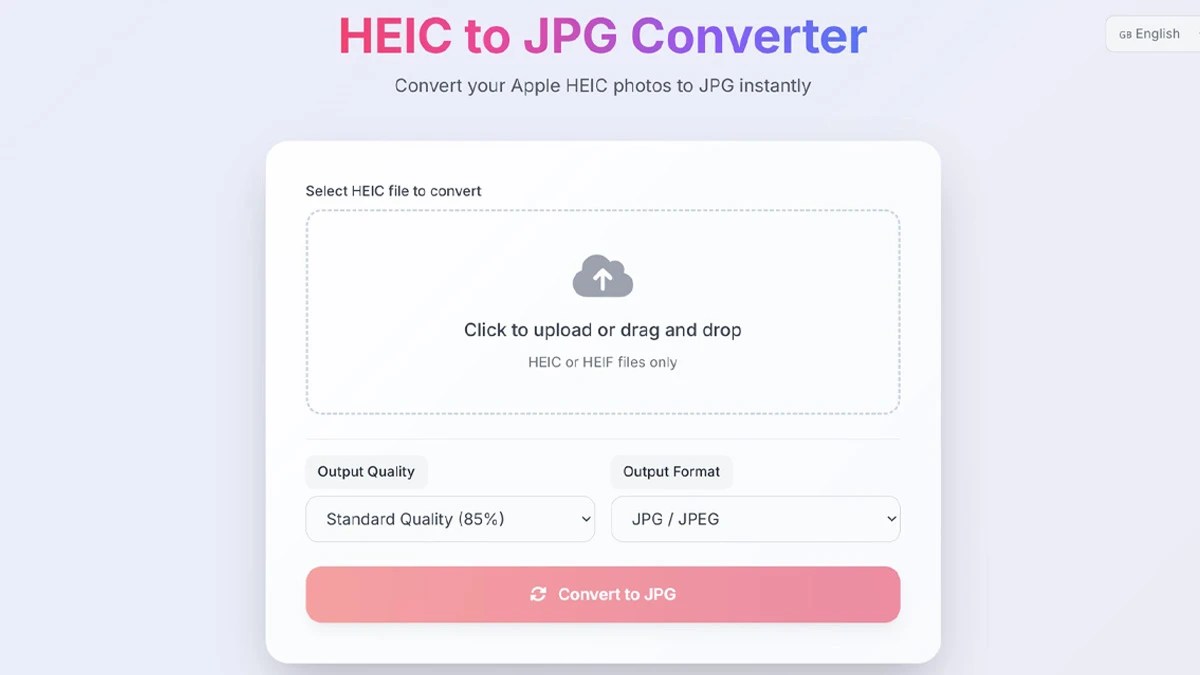
- Open the converter in any modern browser. Chrome, Firefox, Safari, Edge, and Brave all work. The page loads in about a second because what is downloading is not a large application. It is a compressed WebAssembly bundle, typically 2 to 4 MB, containing the full HEVC decoder and JPEG encoder. Once the page has loaded, the conversion works completely offline. Your network connection is only needed for the initial page load, not for any processing that happens afterward.
- Select or drag your HEIC files onto the upload area. Both .heic and .heif extensions are accepted. They are the same container format with different naming conventions depending on the device manufacturer. To select multiple files on Windows, hold Ctrl while clicking individual files, or press Ctrl+A to select everything in a folder. On Mac, use Cmd instead of Ctrl. Most browser converters handle 50 to 100 standard photos without problems. Attempting 500 files at once in a single browser tab is likely to cause memory issues. Split large batches into groups of 50 to 100 and process them sequentially.
- Choose your quality setting. For the vast majority of use cases, 85% is the right answer. It produces files that are visually indistinguishable from the source on any normal screen or standard print up to 8 by 10 inches, while keeping file sizes manageable. The only common reason to go higher is if the photos are going to a print lab for large-format output, or if you need to edit them significantly after conversion. The full breakdown of quality settings by use case is in Section 7.
- Click Convert and wait for processing. On a reasonably modern laptop, a standard 12MP iPhone photo converts in 3 to 6 seconds at 85% quality. What the browser is doing during that time: decoding the HEVC-compressed HEIC data to raw pixels, performing color space translation from the HEIC's Display P3 wide gamut to JPEG's sRGB, applying DCT-based JPEG compression at your chosen quality level, copying EXIF metadata (dates, GPS, device model, exposure settings) into the new JPEG container, and packaging the output file for download.
- Download your converted files. Single-file conversions download immediately. Multiple files are typically bundled as a ZIP archive. Your original HEIC files remain exactly where they were. Conversion creates new files and does not modify or delete originals under any circumstances.
Why the Converted JPG Is Bigger Than the HEIC and Why That Is Normal
Almost everyone is surprised by this the first time. A 2.2 MB HEIC comes back as a 4.8 MB JPEG and the natural assumption is that something went wrong. Nothing went wrong. HEIC's compression algorithm, derived from video codec research, is simply far more efficient than JPEG's 1992-era approach. When you convert to JPEG, the file grows because JPEG needs more bytes to represent the same visual information. At 85% quality, expect converted files to be roughly 1.5 to 2 times the size of the original HEIC. At 95%, expect 2 to 3 times. If the larger sizes cause problems, such as email attachment limits or storage constraints, drop the quality setting to 75 to 80 percent. That typically brings converted files close to the original HEIC size while still looking fine on any normal screen.
File Size Changes by Quality Setting: Measured Data
| Photo Type | Original HEIC | JPEG at 95% | JPEG at 85% | JPEG at 75% | JPEG at 60% |
|---|---|---|---|---|---|
| Outdoor landscape (high detail) | 2.8 MB | 6.3 MB (+125%) | 4.2 MB (+50%) | 3.1 MB (+11%) | 2.0 MB (minus 29%) |
| Indoor portrait (soft light) | 1.9 MB | 4.4 MB (+132%) | 2.9 MB (+53%) | 2.2 MB (+16%) | 1.4 MB (minus 26%) |
| Night photo (high noise) | 2.4 MB | 5.3 MB (+121%) | 3.6 MB (+50%) | 2.7 MB (+13%) | 1.8 MB (minus 25%) |
| Close-up macro (fine texture) | 3.2 MB | 7.1 MB (+122%) | 4.8 MB (+50%) | 3.6 MB (+13%) | 2.3 MB (minus 28%) |
| Blue-sky minimal detail | 1.2 MB | 2.9 MB (+142%) | 1.9 MB (+58%) | 1.4 MB (+17%) | 0.9 MB (minus 25%) |
Outdoor Landscape
HEIC: 2.8 MB
JPEG 95%: 6.3 MB (+125%)
JPEG 85%: 4.2 MB (+50%)
JPEG 75%: 3.1 MB (+11%)
Indoor Portrait
HEIC: 1.9 MB
JPEG 95%: 4.4 MB (+132%)
JPEG 85%: 2.9 MB (+53%)
JPEG 75%: 2.2 MB (+16%)
Night Photo
HEIC: 2.4 MB
JPEG 95%: 5.3 MB (+121%)
JPEG 85%: 3.6 MB (+50%)
JPEG 75%: 2.7 MB (+13%)
Macro and Fine Texture
HEIC: 3.2 MB
JPEG 95%: 7.1 MB (+122%)
JPEG 85%: 4.8 MB (+50%)
JPEG 75%: 3.6 MB (+13%)
5. What Happens Inside the Converter: Four Technical Stages
You do not need to understand this to use a converter successfully. But knowing the four stages explains behavior that otherwise seems arbitrary: why certain files come out differently from others, why simple images bloat more than complex ones on a percentage basis, and why metadata sometimes disappears without warning.
Stage 1: HEVC Decoding
The converter reads the HEIC container and extracts the compressed image data, then runs HEVC decompression to reconstruct the raw pixel array. HEVC is computationally demanding. It was designed for 4K video at scale. On modern CPUs with hardware HEVC acceleration, most machines made after 2019, this is fast. On older hardware, decoding is the stage most likely to add noticeable processing time, particularly with large ProRAW files from the iPhone 15 Pro or 16 Pro which can reach 48 megapixels and produce HEIC files of 25 MB or larger.
One thing worth knowing: Apple's ProRAW format, which saves as a .dng file rather than a .heic file, requires a different decoding path entirely. Standard HEIC converters cannot open DNG files. If you are shooting ProRAW on an iPhone Pro and want JPEG output, you either export from Lightroom or use Apple Photos on macOS, which handles DNG natively. Standard 12MP HEIC files from the main camera are what almost all converters are designed for.
Stage 2: Color Space and Bit Depth Conversion
HEIC images are often stored in Display P3 or a wide-color space with up to 16-bit depth per channel. JPEG only supports 8-bit sRGB. The converter must map the wider HEIC color space into JPEG's narrower container and reduce 10-or-16-bit values to 8-bit. This is where quality can degrade most noticeably if the conversion is done carelessly.
A well-implemented converter uses dithering, which is controlled micro-noise, to prevent visible color banding in gradients. A poorly implemented one produces posterization: smooth sky gradients turn into visible distinct bands. As Cloudinary notes, HEIC "supports features like image transparency and offers a broader dynamic range." All of that must be handled correctly during this stage, and the handling varies meaningfully between different conversion tools.
The practical consequence: photos with large areas of smooth gradient, particularly blue skies, sunsets, skin in even lighting, or studio backgrounds, are most likely to show banding artifacts if the converter's color space handling is subpar. If you see strange banding in converted photos that was not present in the original, the converter's Stage 2 implementation is the likely culprit. Switching to a different tool often fixes it immediately.
Stage 3: JPEG Compression
The pixel data is divided into 8 by 8 blocks and processed through Discrete Cosine Transform. Your quality setting determines how aggressively the encoder discards high-frequency detail. At 85%, enough information is retained that a human eye cannot distinguish the result from the source on a normal display. At 60%, the artifacts become visible, particularly around sharp edges, fine texture areas like hair or fabric weave, and anywhere JPEG's block boundaries create discontinuities that the encoder cannot bridge smoothly.
Something that gets missed in most quality-setting discussions: image content matters as much as the quality percentage. A smooth-toned portrait at 75% quality will look better than a detailed stone wall texture at 85%, simply because complex high-frequency content is harder for JPEG to represent efficiently. This is why the table in Section 4 shows that landscapes produce larger files than portraits at equivalent quality settings. Landscape complexity pushes JPEG harder.
Stage 4: EXIF Metadata Transfer
The converter reads all EXIF data from the HEIC file and writes it into the new JPEG's metadata block. Both HEIC and JPEG support EXIF, as confirmed by Cloudinary's format guide: "Both HEIC and JPEG formats can store EXIF metadata, which is automatically embedded by your camera." However, not all converters transfer it. Some strip metadata deliberately, framing it as a privacy feature. Others simply do not implement the transfer. Before bulk converting an important collection, always test one file and verify metadata survived using ExifInfo.org.
EXIF (Exchangeable Image File Format) is a standard for storing technical and contextual metadata alongside image data. A typical iPhone photo's EXIF block contains: exact date and time to the second, GPS latitude and longitude, altitude above sea level, device make and model, lens focal length, aperture value, shutter speed, ISO sensitivity, exposure compensation, orientation flag, whether flash fired, and sometimes copyright strings or scene descriptors. This data travels with the image through conversion, or it does not, depending on converter implementation. As Adobe confirms, HEIC photos carry full EXIF data including location. For travel photography (GPS enables geographic sorting), professional work (timestamps establish provenance), or legal and insurance documentation (metadata may be required as evidence), verifying EXIF preservation before bulk converting is not optional.
- DCT (Discrete Cosine Transform)
- The mathematical operation at the heart of JPEG compression. It converts an 8 by 8 block of pixel values into a set of frequency components, allowing high-frequency (fine detail) components to be discarded more aggressively than low-frequency (broad structure) components. This is why JPEG handles smooth gradients reasonably well but struggles with sharp text and fine textures.
- Dithering
- A technique used when reducing bit depth (for example, from 10-bit HEIC to 8-bit JPEG) where controlled random noise is introduced to prevent visible color banding in gradients. Without dithering, a smooth 10-bit sky gradient becomes a visibly stepped 8-bit posterization artifact.
- Posterization
- A visual artifact that appears when continuous gradients are rendered with insufficient tonal range. Smooth sky blues become distinct flat bands. A sign that the converter's color depth reduction in Stage 2 was not handled with dithering.
- Container format
- A file format that wraps compressed media data along with metadata. HEIC is a container that can hold multiple compressed images, depth maps, audio clips, and HDR data. JPEG is a much simpler container holding a single compressed image and its EXIF block.
6. When You Actually Need to Convert: Seven Specific Situations
Not every HEIC file needs converting. Within the Apple ecosystem, iPhone to Mac, iPhone to iPad, photos shared via AirDrop or iMessage to other Apple users, HEIC works without friction. But these are the situations where failing to convert creates real, practical problems that reflect poorly on you, cause lost time, or result in actually worse outcomes for the people you are sharing with.
Sharing With Non-Apple Users
This is the most common conversion scenario by far. Photos taken on an iPhone, sent to someone on Android or Windows, that simply do not open or display as blank thumbnails. Converting to JPEG at 85% takes less than a minute and eliminates the compatibility barrier entirely. It is worth noting that WhatsApp, Telegram, and most messaging apps automatically convert HEIC to JPEG during transmission, but the conversion quality is outside your control. Converting before sending gives you control over the quality setting and ensures the recipient sees the photo as you intended.
Professional Photography Delivery
As the Fstoppers 2026 analysis documents, client gallery platforms "almost universally require JPEG or TIFF" for professional delivery, and "print labs almost universally require JPEG or TIFF." Delivering HEIC to a client who cannot open it is not a technical win. It is a support problem that reflects poorly on the photographer. Using 90 to 95% quality for client delivery ensures the files hold up to their scrutiny and to any light editing they might do after receiving the gallery.
Website and Blog Publishing
HEIC renders natively in Safari. In Chrome and Firefox, support depends on OS version, installed codecs, and browser build. It is inconsistent enough that serving HEIC directly to web visitors is an unacceptable compatibility risk. JPEG is the baseline that works for every visitor regardless of their setup. For web-optimized publishing, WebP or AVIF with JPEG fallback is a better long-term architecture, but JPEG remains the minimum safe standard that requires zero consideration of visitor device configuration.
Editing in Non-Major Software
Adobe Photoshop and Lightroom handle HEIC. Photoshop Elements 2025 does not, as documented in Adobe's own community forum. Outside the major Adobe and Capture One products, HEIC support in plugins, batch processors, industry-specific tools, and open-source editors is inconsistent. Converting client HEICs to JPEG before beginning work eliminates a category of silent failures where the software opens the file but renders colors incorrectly, or fails to read the EXIF orientation flag and displays the image rotated 90 degrees.
Sending to Print Services
Print labs, from high-street chains to professional fine-art printers, almost universally require JPEG or TIFF. Use 90 to 95% quality for prints. The higher quality setting preserves fine detail that print output reveals even when screens hide it. A sharp portrait at 85% quality looks fine on a phone screen but may show very slight softness when printed at A3 and examined at close distance. Going to 95% for anything that will be printed above A4 is a standard that professional photographers use for good reason.
Uploading to Platforms and Forms
Job application portals, insurance claims forms, real estate listing systems, e-commerce platforms, and countless other web forms that accept image uploads frequently reject HEIC with an unhelpful "unsupported format" error or, worse, silently accept the file but display it incorrectly to the viewer. JPEG uploads pass through without issues on every such system, including platforms that have been running the same upload code since 2010.
Long-Term Archiving With Maximum Future Compatibility
If you are archiving photos in a format that needs to be readable on any device in 10 to 20 years, JPEG's 34-year track record of universal support makes it the lower-risk archival choice compared to HEIC's still-evolving ecosystem. Keep HEICs in cloud backup, archive JPEGs locally, and you are covered either way. The HEIC originals represent your maximum quality master copies. The JPEG archives represent guaranteed future accessibility. Maintaining both costs nothing beyond the storage, which is cheap.
7. Choosing the Right Quality Setting
The quality slider is the one decision that materially affects your output in ways you will notice later. Most guides either oversimplify this to "higher is better" or give a single number without context. The reality is that the right setting depends on what the photo is for, who will see it, and on what medium, and that the relationship between quality percentage and perceived visual quality is nonlinear in ways that matter.
How the Quality Scale Actually Works
JPEG quality settings do not map linearly to perceived visual results. The perceptible difference between 85% and 95% is minimal on any normal screen, but the file size roughly doubles. The difference between 80% and 70% is more noticeable in complex images with fine texture, but the file size savings are also smaller percentage-wise than the jump from 95% to 85%. The 85% default sits at the inflection point: excellent visual quality, manageable file sizes, and no significant tradeoffs in either direction for everyday use cases.
There is a related phenomenon worth understanding: JPEG quality numbers are not standardized across software. A "quality 85" from Photoshop, a "quality 85" from ImageMagick, and a "quality 85" from a browser converter do not produce identical output. They use the same underlying algorithm but apply different quantization tables. The Photoshop 85% setting is often compared to ImageMagick's roughly 82% in terms of perceived output. This is why comparing converter quality across tools using only the percentage number can be misleading. What matters is the actual visual result, which is why the five-minute test-before-bulk-convert advice at the top of this guide matters.
40 to 60% smaller files at equivalent visual quality. Source: Cloudinary, Nov 2025
Windows 11 requires optional codec. Android support uneven as of early 2026. Source: Fstoppers, March 2026
HEIC: up to 16-bit, HDR, wide gamut P3. JPEG: 8-bit sRGB only. Source: Tonfotos, Jan 2026
Maximum preservation of fine detail. Printers reveal artifacts that screens hide entirely. File size is not the concern at this quality level.
High quality with meaningfully smaller files than 95%. Excellent for long-term storage with future reprinting flexibility at any standard size.
The inflection point. Visually indistinguishable from source on screens and standard prints. Right choice for 90% of conversion use cases.
Good visual quality with noticeably smaller files. Faster page loads improve Core Web Vitals scores. Quality difference from 85% is minimal on screen.
Instagram, Facebook, TikTok, and X all recompress uploaded images. Sending at 95% is wasted bandwidth since the platform downgrades it regardless of what you upload.
Visible compression artifacts on close inspection. Use only when file size is the hard constraint, not quality. Not suitable for print or professional delivery.
8. Batch Processing: Handling Dozens or Hundreds of Photos
Converting photos one at a time is fine for three or four files. When you are looking at 80 vacation pictures or 150 product shots that all need the same treatment, batch processing becomes the only practical approach, and the workflow details matter in ways that are not obvious until you have made the mistakes once.
The Reliable Batch Workflow: Five Rules
- Sort before you convert, not after. Group photos by intended destination before opening the converter. Print-quality conversions need 90 to 95%. General sharing needs 85%. Web images need 80%. Social media needs 75%. Sorting takes five minutes before you start and saves you from discovering that print-destined photos were mixed into the web batch, which means reconverting a third of the work at the right quality setting while the client is waiting.
- Test 3 to 5 images from each group before running the full batch. Convert a small sample, download the files, check quality and file sizes, confirm EXIF metadata survived. If something is off, whether metadata is stripped, quality is lower than expected, or a specific file type causes errors, you have caught it before wasting time on the full batch.
- Use descriptive output naming where the converter supports it. Adding a suffix like "_85pct" or "_web" to output filenames costs nothing during conversion and is invaluable two months later when you cannot remember what quality setting produced a particular folder of JPEGs. Some converters let you define a naming template. Use it.
- Keep originals and conversions in strictly separate directories. Never mix HEIC originals and converted JPEGs in the same folder. A simple structure, keeping originals in a folder named Originals_HEIC alongside conversions in Converted_JPG, takes ten seconds to set up and prevents accidental deletion of source files when you are cleaning up disk space later.
- Delete conversions you do not need after delivery. Converted JPEGs consume considerably more storage than the HEIC originals. If you converted 100 photos for a one-time client email, delete the JPEGs after confirming delivery. The HEIC originals are still available for fresh conversions whenever needed. This single habit keeps storage usage rational over time.
When Browser Converters Are Not the Right Tool
Browser-based tools work reliably up to about 100 files, or when individual files do not exceed 50 to 75 MB. Beyond those thresholds, desktop software handles the work more predictably. It offers faster processing through native hardware acceleration, stable memory management for large batches, and more granular output controls including custom naming patterns, subfolder organization, and the option to preserve the original folder structure in the output. CopyTrans HEIC on Windows and iMazing HEIC Converter on Mac and Windows are both free for basic use and handle the edge cases that browser tools stumble on.
- Batches under 50 files: Any browser converter handles these reliably without any special preparation.
- Batches of 50 to 200 files: Browser converters work, but split into groups of 50 to 100 and clear the converter between groups by reloading the page to avoid memory accumulation.
- Batches over 200 files: Use desktop software. The time saved by not managing browser memory limitations pays back quickly at this scale.
- Files over 25 MB each (ProRAW or iPhone 15 Pro 48MP shots): Desktop software handles these more reliably. Browser converters may time out or fail silently on very large individual files.
- Regular automated conversion (daily or weekly): Set up a folder-watching automation in macOS Shortcuts or Windows Task Scheduler with XnConvert. Zero manual steps after the initial configuration.
9. When Things Go Wrong: Specific Problems and Their Fixes
Most conversions complete without incident. When something does go wrong, the failure almost always falls into one of six categories, each with a specific diagnosis and fix. The most useful thing you can do when a conversion fails is resist the urge to immediately try a dozen different tools and instead spend 60 seconds diagnosing which category the problem falls into.
- The JPG looks noticeably worse than the HEIC original. You converted at too low a quality setting, or the converter's color space handling introduced posterization artifacts. The fix is to reconvert from the original HEIC at 90% or above, not to edit the already-compressed JPEG. Once data is discarded by lossy compression it cannot be recovered. You must work from the source file. If quality is poor across all settings regardless, the HEIC itself may be corrupted. Verify it opens correctly in Apple Photos first.
- The converter returns an error or silently ignores certain files. Work through this sequence: confirm the file opens in Apple Photos or macOS Preview; check the file size since files over 75 MB may exceed browser memory limits and require desktop software; try a different browser since Chrome and Firefox handle WebAssembly most consistently; update your browser to the current release. If a specific file fails across multiple tools and multiple browsers, the HEIC is likely corrupted.
- EXIF metadata disappeared: dates, locations, and camera data are gone. The converter does not transfer EXIF, either by design or by omission. Switch to a converter that explicitly states metadata preservation, test with one file using ExifInfo.org to confirm it is working, then process the batch.
- Conversion works in Incognito mode but fails in normal browsing. A browser extension is interfering with WebAssembly execution. Ad blockers, script blockers, and strict privacy extensions sometimes block WASM modules. In Incognito mode, extensions are typically disabled by default. Switch them off one by one in normal mode to identify the culprit.
- Converted files are much larger than expected even at lower quality settings. Confirm the output format is JPEG and not PNG. PNG uses lossless compression and produces dramatically larger files. If the format is correctly set to JPEG, the size increase is normal. See Section 4's explanation of why converted JPEGs are always larger than the HEIC originals.
- Batch conversion stalls or the browser tab crashes partway through. The batch is too large for the browser's memory allocation. Split into smaller groups of 25 to 50 files, process each group separately, and clear the converter between batches by reloading the page. Alternatively, switch to desktop software for batches of this scale.
10. Privacy: Where Your Photos Actually Go During Conversion
This matters more than most converter comparison articles acknowledge. The answer depends entirely on the converter's architecture, and the difference between the two main approaches is not minor. It is the difference between your photos being processed on your own hardware and your photos being transmitted to and stored temporarily on a stranger's server.
Client-side conversion means all processing happens in your browser using WebAssembly. Your images are loaded into your device's RAM, processed locally, and the output is downloaded directly. No data is sent over the network after the initial page load. The converter's servers never receive your photos. This is the architecture used by this converter.
Server-side conversion means your files are uploaded to a third party's infrastructure, processed on their hardware, and the output is returned to you. Your images temporarily exist on someone else's servers, subject to their data retention policies, security practices, backup systems, employee access controls, and potentially legal data requests. For casual holiday snapshots shared with family, reputable services carry minimal practical risk. For medical images, identity documents, financial records, or any sensitive personal material, client-side conversion is the only appropriate choice.
The simplest way to check: does the converter's website explicitly state that files are processed locally in your browser? If it does not mention this, the safest assumption is that files are being uploaded.
Beyond the client-side vs server-side distinction, a few additional privacy considerations are worth knowing. After converting sensitive images, clearing your browser cache removes any temporary files the browser may have cached during processing. On Chrome and Edge, use Ctrl+Shift+Delete. On Safari, use Cmd+Option+E. For the maximum security scenario, medical images, legal documents, highly sensitive personal material, offline desktop software provides the strongest guarantee. A properly configured offline application cannot transmit data regardless of what its code says or what its developer's policies claim. The network is physically not involved.
One more thing that rarely gets mentioned: EXIF data in photos can be a privacy risk in its own right, independent of where the conversion happens. If you are sharing photos publicly online, the embedded GPS coordinates reveal exactly where each photo was taken. Most social media platforms strip EXIF on upload, but not all do. If you are converting photos for public sharing, consider whether you want GPS and altitude data preserved or stripped. A good converter gives you this choice explicitly rather than making it for you.
- Client-side processing
- Any computation that happens on the user's own device, inside the browser or a locally installed application, without data being transmitted to a remote server. Client-side conversion means your photos never leave your device during the conversion process.
- Server-side processing
- Any computation that happens on a remote server operated by a third party. Your files must be uploaded to that server to be processed. The third party's terms of service, data retention policy, and security practices govern what happens to your data after you upload it.
- Sandboxed environment
- The isolated execution context that browsers provide for JavaScript and WebAssembly code. Sandboxed code cannot access your file system, other browser tabs, or network connections except through carefully controlled APIs. This isolation is what makes browser-based client-side converters trustworthy even though they run code from a third-party website.
- Data retention policy
- A server-side converter's stated rules about how long uploaded files are kept on their servers before deletion. Policies vary from "deleted immediately after conversion" to "kept for 24 hours" to unstated. Without an explicit policy, you have no way of knowing whether your uploaded photos are deleted or stored indefinitely.
11. Changing iPhone Camera Settings: The Prevention Alternative
Converting existing HEIC files is the reactive solution. The proactive solution, which many people never discover, is changing the iPhone's camera format setting so that new photos are captured as JPEG instead of HEIC. This completely eliminates the conversion requirement for new shots, at the cost of larger per-photo storage consumption on the device.
How to Switch to "Most Compatible" on iPhone
- Open the Settings app on your iPhone. This is the grey icon with a gear symbol on your home screen or in the App Library.
- Scroll down and tap Camera. It appears in the list of apps partway down the Settings list, not at the top with the main system settings.
- Tap Formats. This opens the camera format selection screen, which shows two options: High Efficiency and Most Compatible.
- Tap Most Compatible. This switches new photo capture to JPEG. The change applies immediately to all new photos. Existing HEIC photos already on your device are not changed.
- Verify the change worked by taking one test photo and checking it in Files or a file manager app. The file extension should now show as .jpg rather than .heic.
The tradeoff is straightforward: JPEG photos taken at "Most Compatible" quality are visually indistinguishable from HEIC photos in most situations, but they occupy roughly twice the storage space per photo. On a 128 GB iPhone that is mostly full, this can matter significantly. On a 256 GB or 512 GB model, the storage difference is usually not a practical concern. The right choice depends on your storage situation and how often you need to share photos across platforms.
When Not to Switch to Most Compatible
There are situations where keeping HEIC as the default makes clear sense even if compatibility is a regular concern.
- If you have a 64 GB iPhone and regularly approach the storage limit: The 50% file size saving from HEIC is genuinely significant at this capacity. Converting as needed is the better workflow than switching to JPEG and running out of space.
- If you use Photographic Styles or Apple Intelligence photo tools heavily: Some of Apple's advanced photography features work better with the richer HEIC format's extended metadata capabilities.
- If you shoot Live Photos regularly: HEIC handles the Live Photo motion component more efficiently. JPEG stores the still frame only unless the Live Photo is converted separately.
- If you plan to edit photos significantly before sharing: Starting from a higher-efficiency HEIC and converting once to a high-quality JPEG at export is better than starting with a JPEG that was already compressed at capture time.
- High Efficiency
- The iPhone camera format setting that captures photos as HEIC files. Default since iOS 11. Produces roughly 50% smaller files than Most Compatible at comparable visual quality. Requires a codec installation for native viewing on Windows.
- Most Compatible
- The iPhone camera format setting that captures photos as JPEG files. Every device, operating system, and platform can open these without any additional setup. Files are roughly twice the size of equivalent HEIC captures.
- Transfer to Mac or PC (Automatic)
- An iPhone setting found in Settings, then Photos, that automatically converts HEIC files to JPEG during cable or AirDrop transfer to a computer. The original HEIC remains on the iPhone. The computer receives a JPEG. This setting is off by default and is one of the most underused solutions to the compatibility problem.
- Live Photo
- An iPhone feature that captures 1.5 seconds of video before and after a still photo, creating a short animated image. Live Photos are stored as HEIC containers with an embedded HEVC video clip. Converting a Live Photo to JPEG preserves only the still frame and discards the motion component.
12. What Is Coming Next: Image Formats in 2026 and Beyond
The image format landscape is genuinely in flux right now in a way it has not been since JPEG displaced earlier formats in the mid-1990s. Three specific developments from late 2025 and early 2026 are worth understanding because they will affect conversion workflows within the next two to three years.
AVIF: Technically Strong, Adoption Still Very Low
AVIF (AV1 Image File Format) is royalty-free, open source, and compresses 50% more efficiently than HEIC at equivalent visual quality. It has native support across Chrome, Firefox, Edge, and Safari. However, a January 2025 market analysis by Rumvision found only 1% web adoption for AVIF compared to 12% for WebP, despite AVIF's clear technical advantages. The primary constraint on adoption is encoding speed. AVIF takes significantly longer to encode than JPEG, which creates friction for web developers who need to process images at scale.
>Tonfotos notes another limitation specific to photography: AVIF's aggressive noise reduction makes textured surfaces, fabric, asphalt, foliage, and skin with visible pores look "plasticky," which is a genuine drawback for photographic use cases beyond web graphics. For photographs with fine texture, HEIC and high-quality JPEG still produce more natural-looking results than AVIF at equivalent file sizes. For flat graphics, illustrations, and screenshots, AVIF's compression advantage is pronounced and the texture issue does not apply.
JPEG XL: The Unexpected Comeback Story of 2025 and 2026
JPEG XL (JXL) was removed from Chrome in 2022 in what most observers interpreted as a death sentence for the format. In November 2025, Google's Chromium team reversed that decision. According to Heise Online, Chrome 145, released February 2026, brought JPEG XL support back using a new Rust-based implementation that satisfied Google's security requirements. Coywolf reported in January 2026 that Chrome 145 includes JXL support, and The Register covered Google's full reversal in January 2026.
What makes JXL uniquely interesting is its ability to losslessly transcode existing JPEG files to JXL, reducing their size by approximately 20% without any re-encoding or quality loss. This makes it viable for CDNs and image storage services that need to reduce storage costs without losing backward compatibility. Safari has supported JXL since version 17.0. With Chrome 145 now shipping JXL support, the format has genuine cross-browser reach for the first time. Whether this translates into meaningful web adoption over the next 12 months remains to be seen, but the technical foundation is now in place.
HEIC's Expanding Reach Beyond Apple
One under-reported development: HEIC is no longer exclusively an Apple ecosystem format in practice. Tonfotos's January 2026 analysis noted that "late 2025 and early 2026 marked a turning point, HEIC has begun to actively integrate into the Android ecosystem, primarily affecting mid-range and premium devices." Microsoft released HEIF Image Extensions 1.2.29.0 for Windows in January 2026 with improved iPhone photo compatibility. The compatibility gap is real and narrowing, but "narrowing" and "closed" are different things, and the downstream infrastructure (print labs, client platforms, CMS systems, enterprise software) lags significantly behind browser and OS support.
34 years of ecosystem adoption. The universal baseline for every platform, device, and service. Not being displaced in any near-term timeframe.
Full browser support since 2020. Growing but still minority adoption. Source: Rumvision, Jan 2025
All major browsers support it. Slow encoding speed limits developer adoption at scale. Source: Rumvision, Jan 2025
Google reversed 2022 removal decision. Chrome 145 (Feb 2026) ships JXL support. Sources: Coywolf Jan 2026, Heise Online Feb 2026
Windows: optional codec v1.2.29.0 (Jan 2026). Android: partial on premium and mid-range devices. Web: Safari only natively. Source: Free-Codecs, Jan 2026
13. Advanced Workflows: Automation, APIs, and Integration
For individuals who deal with HEIC files as part of a recurring workflow rather than occasionally, manual conversion is an unnecessary step. The tools and approaches in this section eliminate the manual work entirely once they are configured, which makes sense for anyone who processes more than a few dozen photos per week.
macOS Automator and Apple Shortcuts
macOS has had Automator since 2005 and Apple Shortcuts since Monterey. Both can be configured to watch a folder for new HEIC files and automatically convert them to JPEG without any user interaction. The Shortcuts approach is more accessible to non-technical users: create a new Automation in the Shortcuts app, set the trigger to "When a file is added to [folder name]," add an action to convert the image format to JPEG at your chosen quality, and save the output to another folder. Every HEIC file dropped into the watched folder is converted automatically within seconds.
A more powerful approach uses the command line. On macOS with Homebrew installed, the sips command (scriptable image processing system) is built into the OS and can batch convert HEIC to JPEG with a single terminal command:
for f in *.heic; do sips -s format jpeg "$f" --out "${f%.heic}.jpg"; done
This command converts every .heic file in the current directory to JPEG at macOS's default quality setting (roughly 85%) and saves the results alongside the originals. For a custom quality level, ImageMagick (install via Homebrew with brew install imagemagick) offers more control:
magick mogrify -format jpg -quality 85 *.heic
Windows Folder-Watch Automation with XnConvert
On Windows, XnConvert offers a Watch Folder feature that monitors a directory for new HEIC files and automatically converts them using your saved settings. Configure it once with your preferred quality level, output folder, and naming pattern, and it runs silently in the background. CopyTrans HEIC does not have a folder-watch feature but handles manual batch conversions faster than most alternatives on Windows hardware with hardware HEVC acceleration.
API-Based Conversion for Developers and Production Pipelines
For developers integrating photo processing into applications, Cloudinary's transformation API handles HEIC to JPEG conversion at scale with a single URL parameter. A HEIC image stored in Cloudinary can be delivered as JPEG by changing the file extension in the delivery URL, with quality, dimension, and format parameters all controllable via URL syntax. This approach eliminates the need to convert files at upload time, instead doing it on-demand at delivery time, which means you always serve the format the client device needs while storing only the original HEIC.
- For personal use with occasional batches: Browser converter for on-demand conversion. Zero configuration required.
- For macOS users with regular workflows: Apple Shortcuts folder automation or a sips command in a shell script triggered by a cron job.
- For Windows users with regular workflows: XnConvert with watch folder configured once and running in the background.
- For developers handling user-uploaded photos: Cloudinary API or libheif for server-side processing with full programmatic control over output parameters.
- For photographers with Lightroom: Lightroom Classic exports HEIC directly to JPEG with full quality and metadata control through its standard export dialog. No external converter needed.
14. ProRAW, Cinematic Photos, and Special iPhone Formats
Modern iPhones produce more than just standard HEIC files. Understanding the full range of formats helps you know what to expect from different types of conversions and which situations require different tools or approaches entirely.
Apple ProRAW: Why Standard HEIC Converters Cannot Open These
ProRAW was introduced with the iPhone 12 Pro and is available on Pro models up to the current iPhone 16 Pro. It saves as a .dng (Digital Negative) file rather than .heic, using a lossless or near-lossless representation of the image sensor data before Apple's computational photography processing is applied. ProRAW files are enormous: a 12MP ProRAW shot is typically 20 to 30 MB, and a 48MP ProRAW from the iPhone 15 Pro or 16 Pro can reach 75 MB or larger.
Because ProRAW files are DNG, not HEIC, a HEIC-to-JPEG converter simply cannot open them. The correct workflow is to edit ProRAW files in Lightroom or Apple Photos on macOS and export to JPEG from there, which applies your edits and the correct color processing simultaneously. If you have a ProRAW file that you need to convert without editing, macOS Preview can open DNG files and export them to JPEG, though this bypasses the RAW processing pipeline and may not produce optimal color rendering.
Live Photos: What Happens During Conversion
A Live Photo from iPhone is stored as a HEIC file (the still frame) paired with a .mov file (the motion component). When you convert the HEIC to JPEG, you get the still frame as a JPEG. The .mov motion component is a separate file that the converter does not touch. If you need to share the animated Live Photo effect, you need to either share the original from Apple Photos using the Live Photo option, convert the pair to an animated GIF using a dedicated tool, or convert to HEVC video using a video converter. Standard HEIC-to-JPEG conversion preserves only the still image, which is what most people want most of the time.
Portrait Mode Depth Data
iPhone Portrait mode photos embed depth map data within the HEIC container alongside the main image. This depth data is what enables the background blur effect and allows the blur to be adjusted after the fact in Apple Photos. When you convert a Portrait mode HEIC to JPEG, the depth data is discarded. The resulting JPEG is a standard flat image with the background blur rendered at the level it was set when you took the photo, but the blur can no longer be adjusted after the fact because the depth information that enables that adjustment is gone.
This matters if you share a Portrait mode photo and the recipient tries to adjust the blur effect. They cannot, because the JPEG does not carry the depth layer. For photos where you might want to revisit the blur level, keep the HEIC original and convert fresh if you decide on a different blur setting. For photos where the blur looks right and you just need to share them, converting at 85% JPEG is perfectly fine.
- Standard HEIC (12MP, 48MP): Converts normally with any HEIC-to-JPEG converter. This covers the vast majority of iPhone photos.
- ProRAW (.dng files): Cannot be opened by HEIC converters. Use Lightroom, Apple Photos on macOS, or macOS Preview to export these to JPEG.
- Live Photos (.heic plus .mov pair): HEIC converters extract the still frame only. The motion component remains as a separate .mov file and is not affected.
- Portrait mode HEIC: Converts normally, but depth data is discarded. The blur effect is rendered at its current setting and cannot be adjusted in the converted JPEG.
- HEIC sequences (burst shots in a single container): Some converters extract only the first or primary frame. Others extract all frames as separate JPEGs. Check which behavior your converter uses before processing burst sequences.
- ProRAW
- Apple's RAW photo format for iPhone Pro models, introduced with iPhone 12 Pro. Saves as .dng (Digital Negative). Contains unprocessed sensor data before computational photography is applied. Files are 20 to 75 MB depending on resolution. Cannot be opened by standard HEIC converters.
- DNG (Digital Negative)
- An open RAW image format developed by Adobe. Apple uses it as the container for ProRAW files. Supported natively by Adobe Lightroom, Photoshop, and macOS Preview. Requires RAW processing to produce a final image rather than being directly displayable like HEIC or JPEG.
- Depth map
- A grayscale image layer embedded in Portrait mode HEIC files that records the distance of each pixel from the camera. This data powers the adjustable background blur in Apple Photos and enables Portrait Lighting effects. Lost during conversion to JPEG.
- Burst shots
- A rapid sequence of photos taken by holding down the shutter button. On newer iPhones, burst shots can be stored as a single HEIC container holding multiple frames, or as individual HEIC files in a burst album. How a converter handles multi-frame HEIC containers varies by implementation.
15. Platform-Specific Conversion Guides
The conversion process varies meaningfully depending on the operating system and software environment you are working in. This section covers the specifics for the most common platforms, including steps that are not obvious from the interfaces themselves.
Converting HEIC to JPEG on Windows 11
Windows 11 has three realistic options for HEIC conversion, in order of ease. First, the Microsoft Store HEIF Image Extensions codec (free, version 1.2.29.0 as of January 2026) enables the built-in Photos app and Paint to open HEIC files and save them as JPEG through File and then Save As. Second, CopyTrans HEIC for Windows installs a codec that enables right-click conversion directly from File Explorer. Right-click any HEIC file, select Convert to JPEG with CopyTrans, and the JPEG appears in the same folder. Third, a browser converter requires no installation at all and handles any number of files regardless of whether the Windows codec is installed.
One Windows-specific issue worth knowing: the Microsoft Store codec has had known color accuracy problems with Display P3 HEIC files from iPhones. Colors rendered through the built-in Photos app sometimes appear slightly different from the originals. The ElevenForum thread on HEIC color issues (January 2026) documents this in detail. The January 2026 update to HEIF Image Extensions v1.2.29.0 improved this but did not fully resolve it for all photos. If color accuracy matters for your use case, converting via a browser tool that handles the P3-to-sRGB conversion correctly, or using macOS for the conversion if you have access to a Mac, produces more accurate results.
Converting HEIC to JPEG on macOS
macOS handles HEIC natively and gives you several excellent options. The simplest: open the HEIC file in Preview, go to File and then Export, change the format dropdown to JPEG, adjust the quality slider, and save. For multiple files, open them all in Preview simultaneously (select all in Finder and press Space to preview, then open in Preview), select all in Preview's sidebar, and export all at once. For batches of hundreds of files, the sips command in Terminal is faster and can be incorporated into shell scripts or Automator workflows.
One macOS-specific advantage: Apple Photos on macOS performs the Display P3 to sRGB conversion correctly when exporting to JPEG, because the application was designed by the same team that created the capture format. If you have concerns about color accuracy in your conversions, exporting directly from Apple Photos on macOS rather than using a third-party tool gives you the most reliable color results. The Photos export dialog is at File, then Export, then Export Photos, where you can choose JPEG format and quality level.
Converting HEIC to JPEG on Android
Android's handling of HEIC files depends on the device and Android version. Android 10 and later officially support HEIC, but "support" in practice means the built-in gallery app can open them, not that all other apps can. For conversion, the most reliable approach on Android is a browser converter accessed through Chrome. Open the converter page in Chrome for Android, select your HEIC files (either from device storage or from Google Drive where someone may have shared them), convert, and download. The process is identical to desktop conversion and works on any Android device running Chrome.
If you regularly receive HEIC files from iPhone users and need to convert them on Android, Google Files (the built-in file manager on many Android devices) can now view HEIC files but does not offer conversion. For conversion, a dedicated app from the Play Store or a browser converter are the practical options. The key thing to check before installing any conversion app from the Play Store is whether it processes files locally or uploads them to a server, because many Android apps in this category are server-side tools with privacy implications.
Converting HEIC to JPEG on Linux
Linux has no built-in HEIC support, but the open-source libheif library, combined with ImageMagick, provides full conversion capability through the terminal. On Ubuntu and Debian-based systems, install both with a single command: sudo apt install libheif-examples imagemagick. On Arch Linux: sudo pacman -S libheif imagemagick. Once installed, converting a single file uses: heif-convert input.heic output.jpg. Batch converting an entire directory: for file in *.heic; do heif-convert "$file" "${file%.heic}.jpg"; done. The browser converter approach also works on Linux in any modern browser and requires no installation.
16. HEIC, JPEG, and Website Performance: What Web Publishers Need to Know
If you publish a website, blog, or online portfolio and use iPhone photography as your primary image source, the format decisions you make have direct consequences for search engine rankings, page load speed, and the experience of every visitor. This section addresses the specific considerations that apply to web publishing, which differ meaningfully from the considerations for personal photo sharing.
Why HEIC Cannot Be Used Directly on Websites
Serving HEIC images directly on a public website is not a viable approach in 2026. Safari renders HEIC natively, but Chrome and Firefox rendering depends on the visitor's operating system and installed codecs. A Chrome user on Windows 11 without the Microsoft HEIF codec installed will see a broken image. A Chrome user on Android with an older phone will see nothing. A Firefox user on Linux will see a broken image regardless. The error rate for HEIC-served images to non-Safari users is high enough to be unacceptable for any serious web project.
The correct workflow for web publishing is to convert to JPEG at 80% quality as the baseline format, with WebP as an additional option for browsers that support it. This gives every visitor a working image while giving modern browsers a more efficient format. Most content management systems, including WordPress with the Imagify or Smush plugin, handle this conversion automatically during upload. If yours does not, converting to JPEG before upload takes the same amount of time as uploading HEIC would and produces universally compatible results.
File Size, Core Web Vitals, and Page Speed
Google's Core Web Vitals include Largest Contentful Paint (LCP), which measures how quickly the main visual content of a page loads for the visitor. Large images are one of the most common reasons for poor LCP scores. A 4.5 MB JPEG converted at 95% quality from a 12MP iPhone photo will load noticeably slower than a 1.8 MB JPEG converted at 80% quality, and on most web pages the visual difference between the two is invisible to visitors.
- Hero images (full-width banner photographs): Convert at 80% quality, then resize to the maximum display width of the element (typically 1,200 to 1,600 pixels wide). Full-resolution 12MP photos are rarely needed on the web.
- Blog post inline images: Convert at 80% quality, resize to your content column width (typically 800 to 1,000 pixels wide). Serving a 4,000-pixel image in a 900-pixel column is a common and entirely avoidable performance mistake.
- Product photography on e-commerce: Convert at 85% quality (slightly higher than blog images to support zoom views), resize to match your product image container dimensions, and provide a higher-resolution version only for the zoom feature.
- Portfolio photography: Convert at 85 to 90% quality to represent your work accurately, but still resize to screen resolution. A photographer serving 48MP unresized images from an iPhone 15 Pro is punishing their page load times for no visible benefit to the visitor.
- Thumbnail and gallery images: Convert at 75 to 80% quality. Small thumbnails do not benefit from high quality settings and the file size difference is significant when you have 40 thumbnails loading simultaneously on a gallery page.
The Correct Format Strategy for Web in 2026
The technically optimal approach for web image delivery in 2026 is to provide AVIF as the primary format with JPEG as the fallback, using the HTML picture element to serve different formats to different browsers. This approach looks like the following in practice:
<picture>
  <source srcset="photo.avif" type="image/avif">
  <source srcset="photo.webp" type="image/webp">
  <img src="photo.jpg" alt="Description" loading="lazy">
</picture>
This serves AVIF to browsers that support it (Chrome, Firefox, Safari), WebP as a fallback for any browser that supports WebP but not AVIF (edge cases), and JPEG as the final fallback for anything else. The practical reality for most independent publishers is that WordPress plugins handle this automatically. For those managing their own image pipeline, converting HEIC to JPEG at 80 to 85% is the minimum required step. Adding WebP and AVIF variants on top of that is an optimization worth doing if you have the workflow for it, but JPEG alone is sufficient for a well-performing website.
17. Professional Use Cases: Photography, Real Estate, and Product Photography
The considerations for professional photographers, real estate agents, and product photographers differ from personal use in ways that matter for the decisions around quality, metadata, file organization, and delivery. This section covers the specific workflows that come up repeatedly in professional contexts.
Event and Portrait Photography
Professional photographers who shoot events on iPhone Pro models face a specific version of the conversion problem: large batches of high-resolution HEIC files that need to be delivered to clients in JPEG within a defined turnaround time. The practical considerations are these.
First, EXIF preservation is non-negotiable in professional contexts. Timestamps establish when photos were taken, which is important for documenting events chronologically and for any situation where the time of capture matters legally or contractually. GPS data may be required for certain types of documentary or insurance work. Test your conversion tool for metadata preservation before your first professional batch. Use ExifInfo.org to verify that date, time, camera model, and GPS data all survived the conversion.
Second, color accuracy matters more for professional delivery than for personal sharing. The Display P3 to sRGB conversion in Stage 2 of the pipeline should produce natural-looking skin tones and accurate venue colors. If your converter produces slightly oversaturated or color-shifted results, clients will notice even if they cannot articulate what is wrong. Test with a portrait containing skin tones before committing to a tool for client work.
Third, file naming and organization before delivery needs to be deliberate. Delivering a folder of IMG_5234.jpg through IMG_5634.jpg to a client is amateur-looking and makes it impossible for them to find specific photos efficiently. Convert with a naming scheme that includes the date, event name, and sequence number: 2026-03-14_WeddingSmith_0001.jpg through 2026-03-14_WeddingSmith_0400.jpg. Desktop conversion tools like iMazing HEIC Converter support custom naming templates that apply during the conversion process.
Real Estate Photography
Real estate photography workflows have specific requirements that differ from portrait work. Most MLS (Multiple Listing Service) platforms in the United States have strict requirements for JPEG files with specific maximum dimensions and file sizes per photo. Dimensions are typically capped at 2,048 pixels on the longest side, and file size limits of 10 MB per image are common. Converting at 85% quality and resizing to 2,048 pixels wide before upload satisfies both constraints comfortably.
GPS metadata in real estate photos is worth thinking about specifically. The EXIF GPS coordinates in interior shots reveal the property address to anyone who checks the metadata. Most real estate photographers strip GPS from delivered images as standard practice, both to protect their own location data (the GPS shows where they were standing, which with interior shots is inside a private residence) and to give the listing agent control over location disclosure. A converter with explicit metadata control, letting you preserve timestamps while stripping GPS, is more useful here than one that either preserves everything or strips everything.
Product Photography for E-commerce
Product photography for e-commerce platforms like Shopify, WooCommerce, and Amazon has the most standardized requirements of any professional photography use case. Amazon requires JPEG or TIFF with pure white backgrounds (RGB 255, 255, 255), minimum 1,000 pixels on the longest side for zoom functionality, and maximum file size of 10 MB. Shopify recommends JPEG at 72 DPI for web display, with dimensions between 2,048 and 4,472 pixels. Neither platform accepts HEIC.
The color accuracy issue is particularly important for product photography. A shirt that looks deep burgundy in the HEIC original should look the same shade of burgundy in the JPEG delivered to the platform and displayed on the customer's screen. Any color shift introduced by a careless P3-to-sRGB conversion could result in customer complaints about products looking different from their photos. Using a color-managed conversion tool and spot-checking the output against the original is worth the extra two minutes per product category.
- For portrait and event photographers: Test EXIF preservation and color accuracy before the first batch. Use 90 to 95% quality for client deliverables. Use desktop software for batches over 200 files.
- For real estate photographers: Resize to 2,048 pixels on the longest side before uploading to MLS. Convert at 85% quality. Consider stripping GPS metadata from interior shots as standard practice.
- For product photographers on e-commerce platforms: Check each platform's specific JPEG requirements before converting. Amazon, Shopify, and WooCommerce all have different dimension and quality specifications. Convert at 85 to 90% quality and verify colors against originals for each product category.
- For photojournalists and documentary photographers: EXIF timestamps and GPS are potentially legally significant. Never use a converter that strips metadata without your explicit consent. Verify preservation before every batch.
18. Common Misconceptions About HEIC Conversion
Several persistent myths about HEIC conversion circulate in forums, tech support threads, and casual conversations. They cause people to make suboptimal decisions, convert unnecessarily, or avoid conversion when they should be doing it. Here is a direct response to the ones that come up most frequently.
Misconception 1: Converting to JPEG Destroys Photo Quality
The phrasing "destroys quality" implies a dramatic and obvious degradation. This is not accurate for conversions at 85% quality or above. Both HEIC and JPEG use lossy compression. Both discard some image data. The difference at 85% JPEG quality is imperceptible to the human eye on any normal display or standard print. The myth likely originates from experiences with very low quality JPEG settings (below 60%) where artifacts are genuinely visible, or from the compounding degradation that happens when a JPEG is repeatedly edited and re-saved. A single conversion from HEIC to JPEG at 85% does not visibly "destroy" anything.
Misconception 2: HEIC Files Cannot Be Opened on Windows at All
This was true before iOS 11 popularized the format and before Microsoft responded with the HEIF Image Extensions codec. As of January 2026, the codec is free from the Microsoft Store (version 1.2.29.0), and once installed it enables the built-in Photos app and many other Windows applications to open HEIC files natively. The limitation is that it is not installed by default, which means any given Windows user may or may not have it. Converting to JPEG before sharing is still the safer approach when you do not know the recipient's setup, but the claim that HEIC is completely unopenable on Windows is no longer accurate.
Misconception 3: Converting to JPEG Always Makes Files Smaller
This is the opposite of what actually happens, and it surprises people consistently. HEIC's compression algorithm is more efficient than JPEG's. Converting a 2 MB HEIC to JPEG at 85% produces a file of roughly 3 to 4 MB. Converting at 95% produces a file of 4 to 6 MB. If someone converts HEIC to JPEG hoping to save space, they will end up with larger files and be confused about what went wrong. Nothing went wrong. JPEG simply requires more bytes than HEIC to represent the same visual information. The solution, if smaller JPEG files are needed, is to use a lower quality setting (75 to 80%) which brings the converted JPEG size close to or smaller than the original HEIC.
Misconception 4: Once Converted, You No Longer Need the HEIC Original
This is technically true but practically dangerous as a habit. The HEIC original represents your maximum quality source file with the full HEVC-compressed data, wide color gamut, HDR metadata, and all the depth and motion information that was captured. A JPEG converted at 80% is sufficient for most sharing purposes but is a downgraded version of that original. If you later need a higher quality print, a different crop, or a different quality setting for a different use, you need the original HEIC to start from. Deleting HEIC originals immediately after converting is a one-way door. Cloud storage is inexpensive. Keep the originals.
Misconception 5: All Online Converters Are the Same
They are not, in four meaningful ways. First, client-side versus server-side processing determines whether your photos leave your device. Second, color profile handling determines whether the P3-to-sRGB conversion preserves accurate colors or introduces color shifts. Third, EXIF metadata handling determines whether timestamps and GPS survive. Fourth, the specific WebAssembly library version used for HEVC decoding affects compatibility with edge cases like very large files, burst sequences, and ProRAW-adjacent formats. These differences are not visible from the interface and require actual testing to evaluate.
19. Summary: What to Actually Do
HEIC is a better format than JPEG by almost every measurable technical criterion: smaller files, superior color depth, HDR support, less quality loss on re-saves, more metadata capability, a richer file container. Apple made the right engineering call in 2017. The problem has never been the technology itself. It has been the assumption that the rest of the digital ecosystem would follow quickly. It has not, and in 2026 the conversion requirement persists in any workflow that crosses platform boundaries.
For the vast majority of sharing, delivery, and publishing scenarios, JPEG at 85% quality is the format that works without friction. It is visually indistinguishable from the source on any normal screen or standard print. It is accepted without question by every platform, tool, and service. It takes under a minute to produce from a browser-based converter that never touches your originals. That tradeoff, marginally larger files in exchange for zero compatibility risk, is worth making whenever your photos need to reach someone outside the Apple ecosystem.
The format landscape is shifting, and the direction is clear. JPEG XL's return to Chrome in version 145, HEIC's growing presence on Android devices, AVIF's technically superior compression with its still-low adoption rate: the next few years will change which formats are practical defaults for web and mobile publishing. But as the Fstoppers March 2026 analysis concludes, displacing JPEG requires not just a better format but "the entire downstream infrastructure to update simultaneously." That process takes years, not months.
Until it does: keep your HEIC originals in cloud backup, convert to JPEG at 85% when you need to share across platforms, and spend the time you save not troubleshooting "unsupported format" errors on work that actually matters.
The Short Version for People Who Skipped to the End
- For personal photo sharing with non-iPhone users: Convert at 85% quality in any browser converter. No installation needed. Takes about a minute per 50 photos.
- For print orders: Convert at 90 to 95% quality. Printers see detail that screens hide.
- For websites and blogs: Convert at 80% quality. Resize to actual display dimensions before uploading. This matters more for page speed than any quality setting.
- For social media: Convert at 75% quality. The platform recompresses whatever you upload anyway.
- For professional client delivery: Test EXIF preservation first, then convert at 90% with a tool that explicitly preserves metadata.
- For privacy-sensitive photos: Use a converter that explicitly states client-side processing, meaning files never leave your device. Verify by checking the page's stated architecture before uploading anything sensitive.
- Always keep HEIC originals. Convert on demand as needed. Never delete source files immediately after converting.
Frequently Asked Questions
What exactly is HEIC and why does Apple use it?
HEIC (High Efficiency Image Container) is Apple's implementation of the HEIF standard, which uses HEVC (H.265) video compression technology to store still images. Apple switched to HEIC as the default iPhone camera format in iOS 11 (September 2017) primarily to address storage limitations. As Cloudinary's HEIF format analysis confirms, "on average, HEIF images are about 50% smaller than their JPEG counterparts while maintaining the same quality." HEIC also supports 10-bit color depth, HDR, transparency, and multiple images in a single file container, all features JPEG fundamentally lacks. The compatibility issues are not a flaw in the format. They are a downstream ecosystem problem created by the gap between Apple's adoption timeline and everyone else's. As of early 2026, Apple has no plans to change the default format.
Do I lose quality when converting HEIC to JPG?
As Adobe confirms directly: "Yes. JPG is a lossy format, so there may be a slight reduction in image quality during conversion." However, "slight" is the operative word at 85% quality or above. Both HEIC and JPEG use lossy compression. Both discard some image data. But HEIC's algorithm is more sophisticated and starts from a higher-quality baseline. At 85% JPEG quality, the visual difference is imperceptible on any normal screen or print up to 8 by 10 inches. The gap becomes noticeable in specific scenarios: large-format printing at A3 or above, heavy post-processing where you are making significant exposure or color adjustments, or comparing files at 200% zoom. For everyday photo sharing and web use, 85% JPEG quality is entirely sufficient.
Can I batch convert multiple HEIC files at once?
Yes. Browser-based converters handle batches by selecting multiple files simultaneously. Ctrl+A (Windows) or Cmd+A (Mac) selects everything in a folder. Ctrl+Click or Cmd+Click selects individual files. Results are typically delivered as a ZIP archive containing all converted JPEGs. Browser tools work reliably up to about 50 to 100 standard smartphone photos per batch. For larger volumes, desktop tools like CopyTrans HEIC (Windows, free) or iMazing HEIC Converter (Mac and Windows, free) are more reliable since they are not subject to the memory constraints of browser tabs. The critical practical point: sort photos by intended use before converting, because different destinations warrant different quality settings. Mixing print-destined photos with web-optimized photos in one batch means some photos get the wrong setting.
Why are my converted JPG files bigger than the HEIC originals?
Because HEIC's compression algorithm is dramatically more efficient than JPEG's, "up to 50% smaller than JPEGs at the same quality level." When you convert to JPEG, the file grows because JPEG needs more bytes to represent the same visual information. This is completely expected and normal. At 85% quality, expect converted files to be approximately 1.5 to 2 times the size of the original HEIC. At 95%, they may reach 2 to 3 times the original size. If larger file sizes cause practical problems, such as email attachment limits or storage constraints, lower your quality setting to 75 to 80%. That typically brings converted files close to or even smaller than the original HEIC size while still looking excellent on screen.
Will converting delete my original HEIC files?
No. Conversion creates new JPEG copies. The original HEIC files are not modified, moved, or deleted. You can manually delete them afterward if you want to free storage, but the converter itself never touches the originals. The best long-term approach is to keep HEIC originals in cloud backup (iCloud Photos or Google Photos both handle them natively) and convert to JPEG on demand when you need to share or deliver. This means you always have the maximum-quality source available for future conversions at different quality settings, which is useful if you need a high-quality version for printing something you originally converted at 80% for web use.
Does Windows 11 open HEIC files natively in 2026?
Not completely out of the box. Windows 11 requires the HEIF Image Extensions codec from the Microsoft Store. It is free but is a separate installation step that many users have not taken. Microsoft released an updated version (1.2.29.0) in January 2026 with improved iPhone photo compatibility. Once installed, the Photos app and some other Windows applications can open HEIC files. However, this does not extend to all Windows software. Third-party applications, plugins, older tools, and enterprise systems each need to implement support independently. Converting to JPEG before sharing with Windows users remains the friction-free approach, since you cannot guarantee their codec version or whether their specific software uses it.
Do HEIC converters preserve photo metadata and GPS location?
As Cloudinary confirms, "both HEIC and JPEG formats can store EXIF metadata, which is automatically embedded by your camera. This data includes details such as the date and time of capture, GPS location, and camera settings." Good converters transfer all this metadata automatically. However, not all tools do. Some strip it deliberately as a privacy feature, others simply do not implement the transfer. Before batch-converting an important photo collection, test one or two files and verify metadata survived using ExifInfo.org. This matters for travel photos (GPS enables geographic sorting), professional work (timestamps establish provenance), and any documentation where metadata may need to serve as evidence.
Is it safe to convert photos using online tools?
It depends on the converter's architecture. Client-side converters run entirely in your browser using WebAssembly. Your photos never leave your device, no server receives them, and everything processes locally in RAM. This is the privacy-correct architecture for any sensitive material. Server-side converters require uploading files to remote infrastructure. Your images temporarily exist on someone else's hardware, subject to their retention policies and security practices. For everyday holiday photos, reputable server-side services carry minimal risk. For medical images, identity documents, private personal photos, or confidential professional material, client-side conversion is the only appropriate choice. The simplest test: does the site explicitly state that files are processed locally in your browser? If it does not, assume files are being uploaded.
Can I convert ProRAW files from my iPhone Pro using a HEIC converter?
No. ProRAW files from iPhone Pro models are saved as .dng (Digital Negative) files, not .heic files. HEIC converters cannot open DNG format. To convert ProRAW to JPEG, you need either Adobe Lightroom or Photoshop (which handle DNG natively and allow full RAW processing before export), Apple Photos on macOS (which opens ProRAW and exports to JPEG with the correct color processing applied), or macOS Preview (which can open DNG and export to JPEG, though without RAW processing controls). For standard HEIC files taken with the main iPhone camera in non-ProRAW mode, any HEIC converter works normally. ProRAW is a separate workflow entirely.
Why do my converted photos look different in color from the originals?
This is almost always caused by improper handling of the color space conversion in the conversion pipeline. iPhone photos are captured in the Display P3 wide-gamut color space. JPEG only supports the sRGB color space, which covers a narrower range of colors. A converter that strips the color profile data instead of properly converting from P3 to sRGB will produce photos where greens and reds appear oversaturated, or where overall hues shift slightly. The fix is to use a different conversion tool that explicitly handles color profile conversion, or to use macOS Preview or Apple Photos on Mac for the conversion, which perform the P3-to-sRGB mapping correctly because Apple designed both the capture format and the export pipeline. If you are on Windows and experiencing this issue, the Microsoft HEIF codec version 1.2.29.0 (January 2026) improved color accuracy but may not fully resolve it for all photo types.